Video Compressor for Mac
Shrink videos
on your Mac.
Drop in any video file, check the estimated savings, and compare the compressed copy with the original before you keep it.


The Overview of Video Compressor for Mac
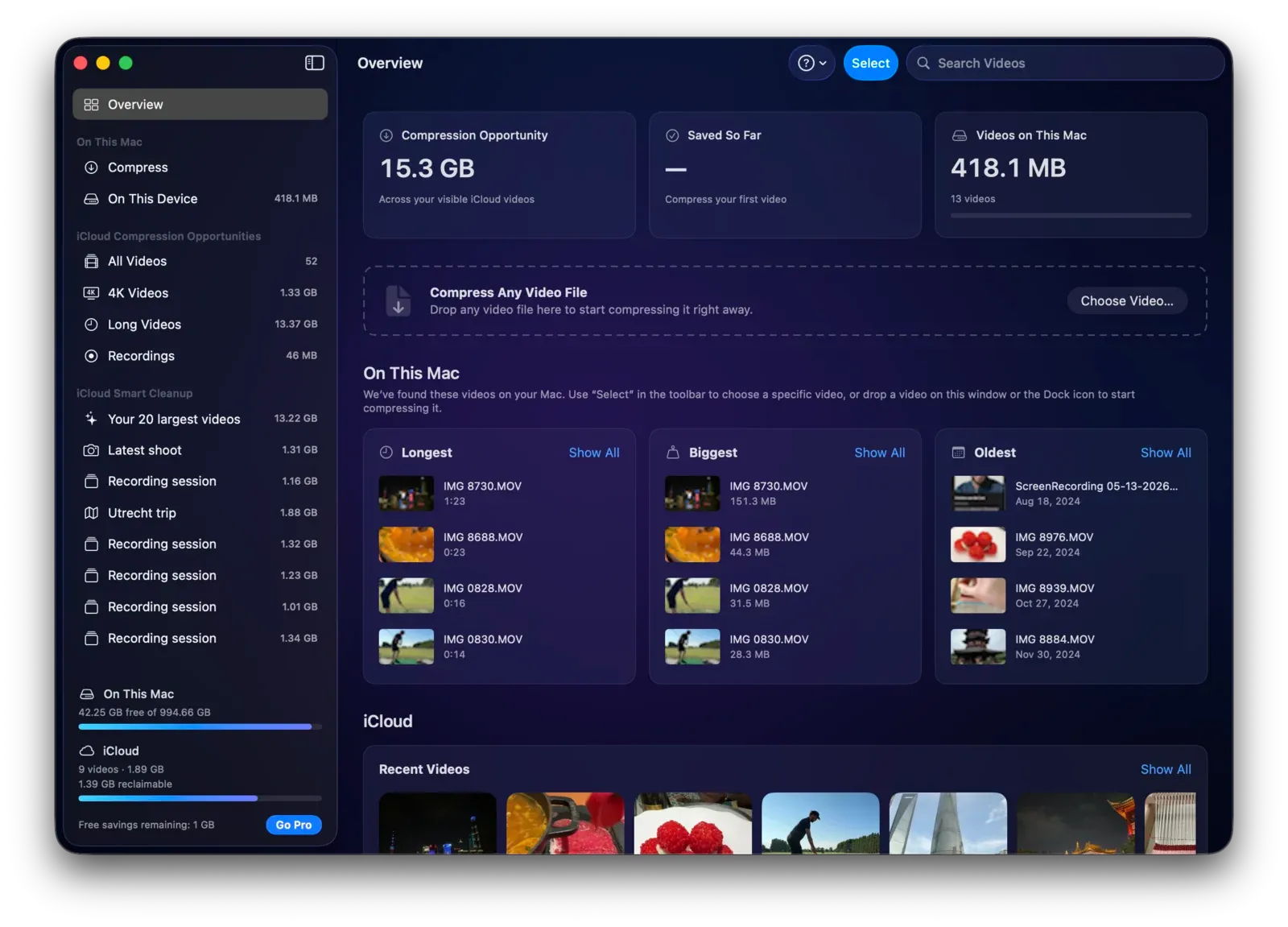
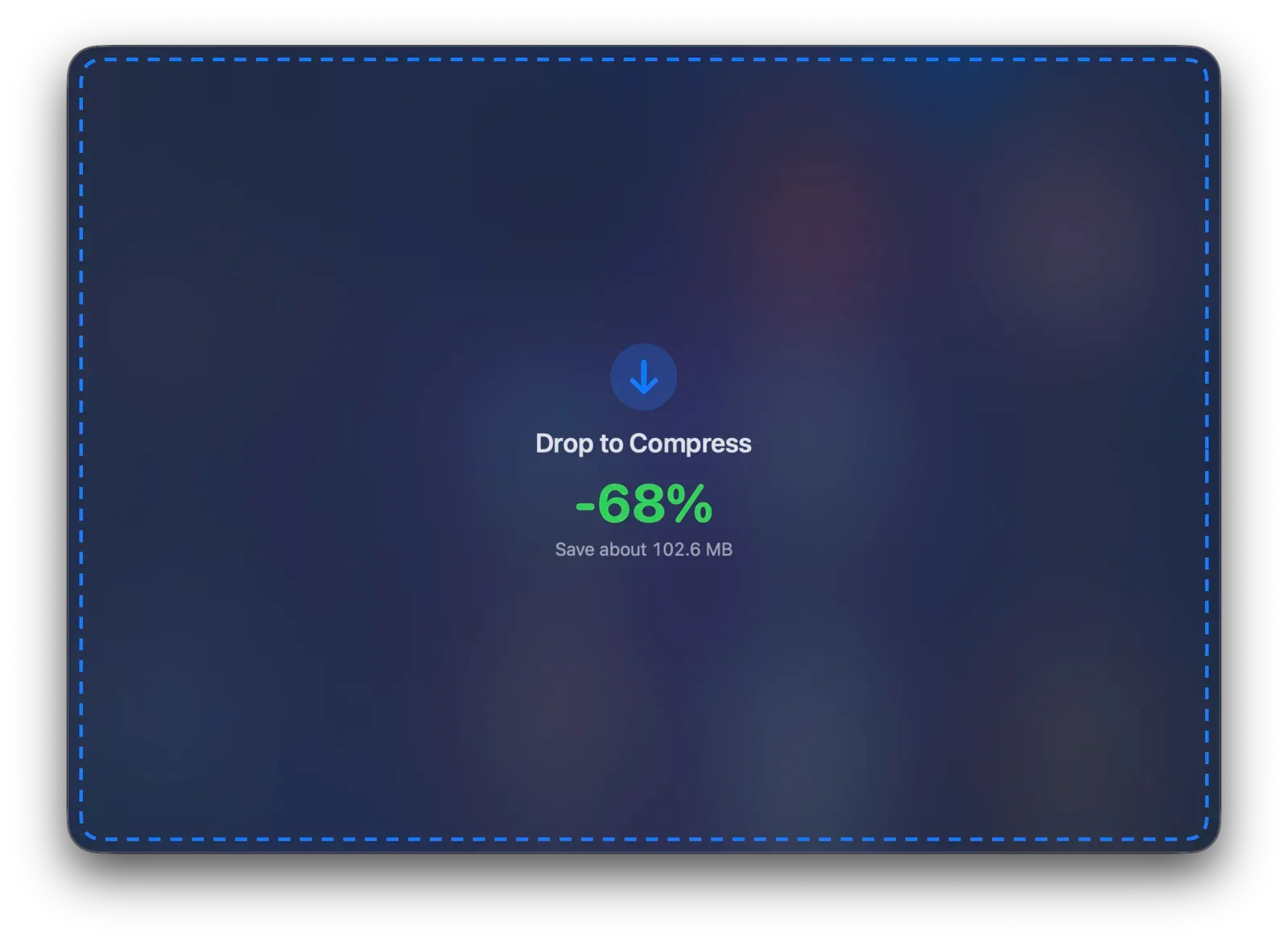
Start with a drop
Drop a video.
See the savings.
Drop any video file on the window or the Dock icon. The drop target shows the estimated saving before anything is compressed.

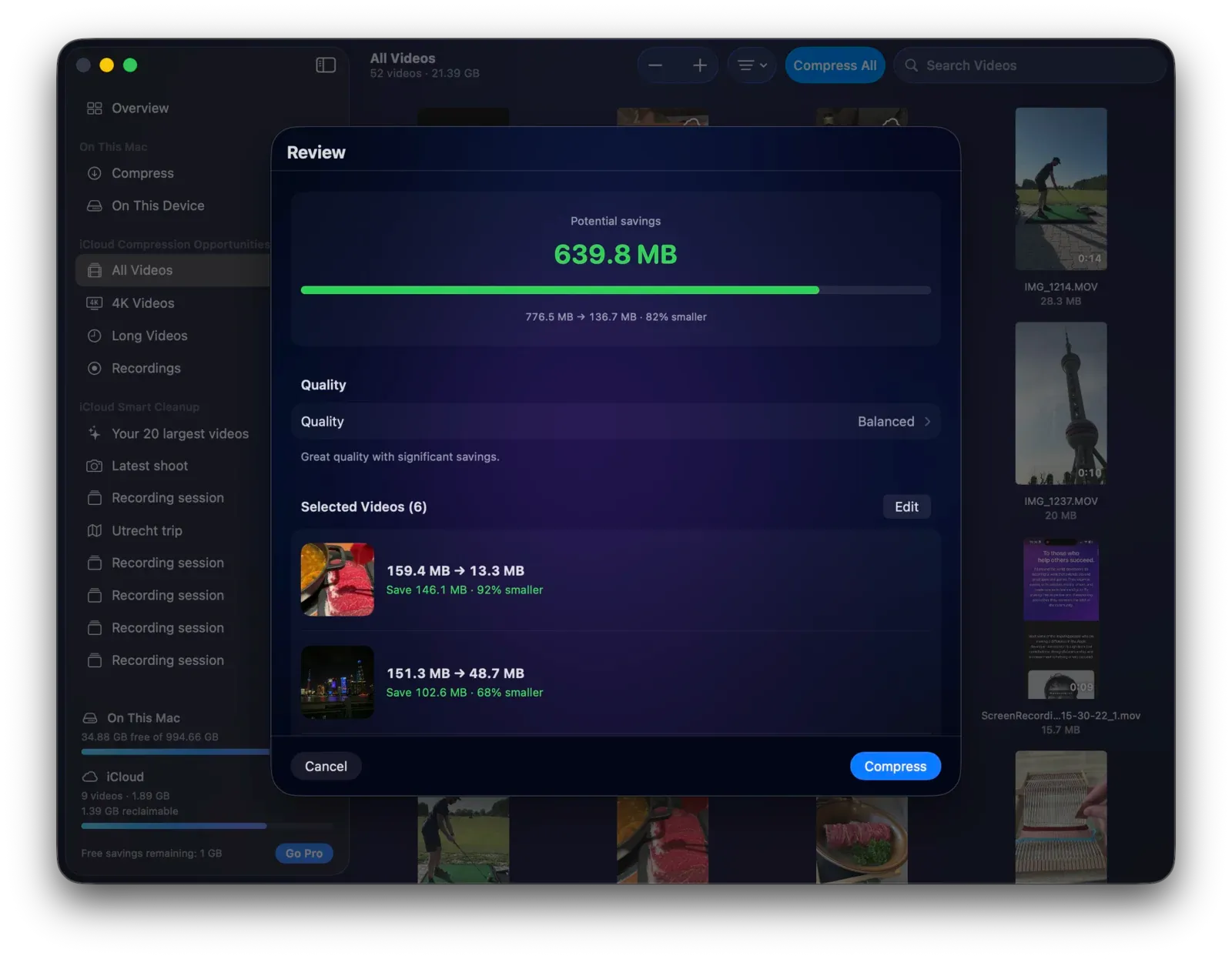
Review the plan
Check the plan
before you start.
The review adds up the potential savings and shows every selected video before and after. The quality setting is one row away, so you see the trade-off before you press Compress.
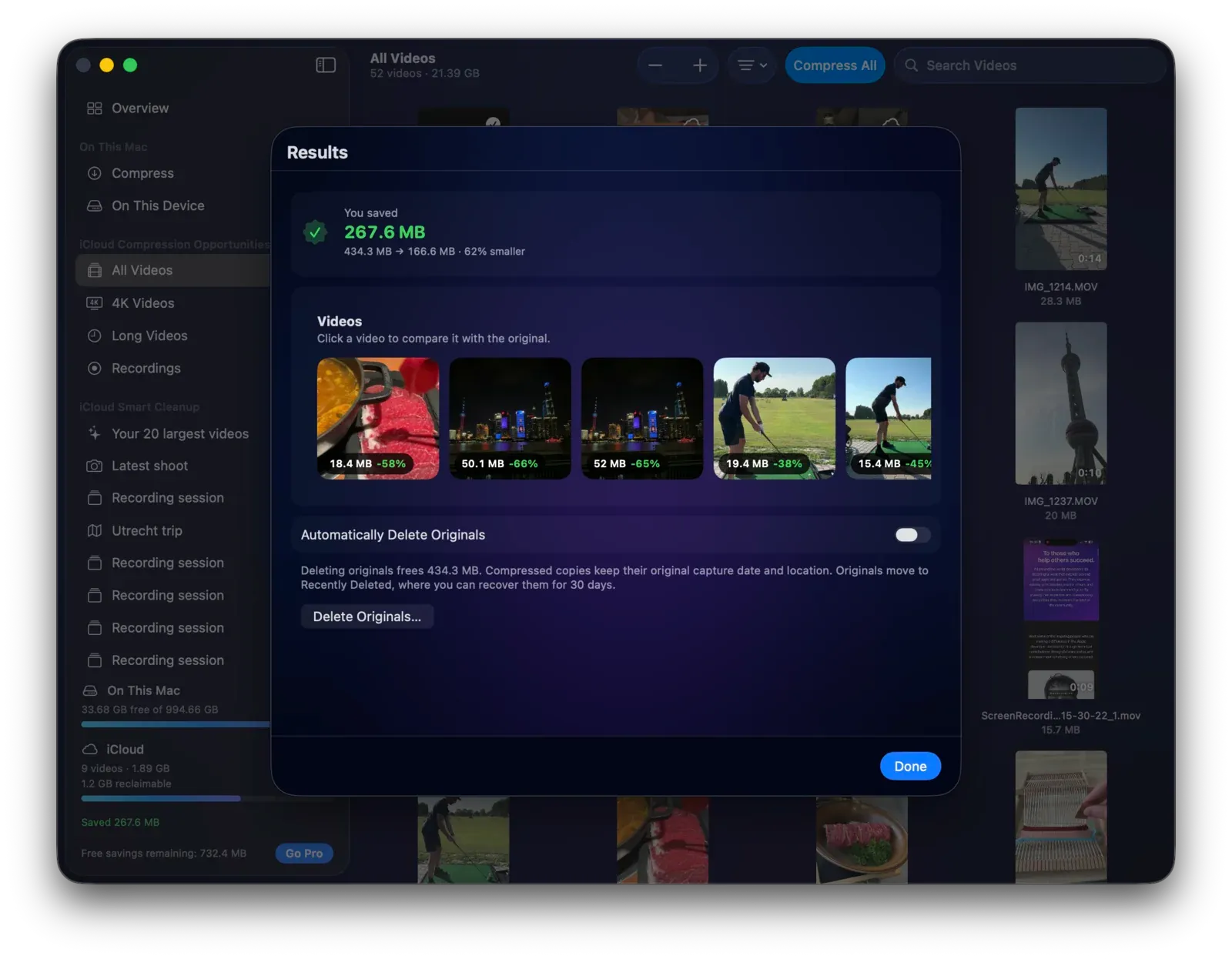
Measured, not guessed
See what you
really saved.
The results screen shows the measured size of each saved copy. Deleting the originals is a separate step with its own confirmation.
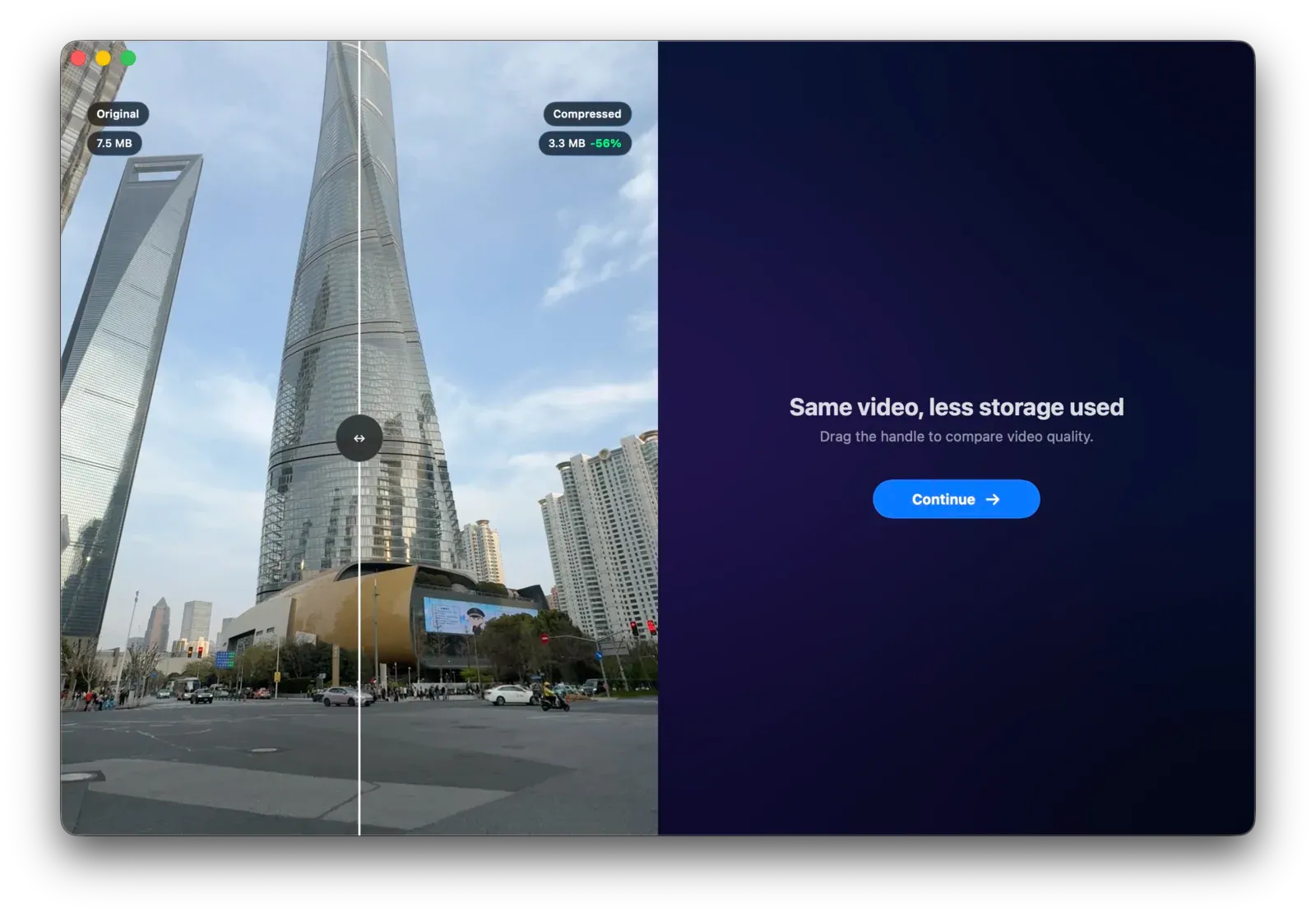
Compare first
Same video.
Less storage.
Drag the handle to compare the original with the compressed copy before you decide what to keep.
Privacy
Your videos
stay yours.
Compression runs on your Mac. Video content is never uploaded to our servers, there is no account, and the app shows no advertising.
Questions about the Mac app.
Which videos can I compress on a Mac?
Drop any video file on the app window or the Dock icon, or choose videos with Select. The Overview also lists the videos on your Mac and the iCloud videos that could save the most space.
Does it upload my videos?
No. Compression runs on your Mac and video content is not uploaded to SwiftLee servers. Apple services may download iCloud originals when needed.
Does it replace my original video?
No. The compressed copy is saved first. Deleting an original is a separate action that asks for confirmation, and you can compare both versions before you decide.
Where do I download it?
From the Mac App Store. Video Compressor for Mac, iPhone, and iPad share the same App Store listing.

Compress videos
on your Mac.
Download Video Compressor from the Mac App Store and drop in your first video.
On-device · No account · No ads