iPhone storage and iCloud storage solve two different problems. Your iPhone storage is the fixed space built into your device, while iCloud storage is online space tied to your Apple Account. Buying more iCloud storage does not increase the physical capacity of your iPhone.
That distinction sounds simple, but iCloud Photos makes it easy to mix the two up. The same photo library can use both kinds of storage at once. Understanding that relationship helps you free up space without accidentally deleting photos or videos everywhere.
Does iCloud take up storage on your iPhone? Yes and no. iCloud has its own online storage, but iCloud Photos, iCloud Drive, and similar services can still keep copies on your iPhone. With Optimize iPhone Storage turned on, your iPhone keeps smaller versions when space runs low and the full originals stay in iCloud.
This guide reflects Apple’s current guidance for iOS 26.
What is iPhone storage?
iPhone storage is the space inside your iPhone. Apps, photos, videos, messages, downloaded music, offline files, and iOS itself all use part of it.
You can inspect it under Settings > General > iPhone Storage. The colored bar shows which categories take up space, followed by Apple’s recommendations and a list of apps. Apple explains these categories in its guide to checking iPhone and iPad storage.
The important limitation is that this capacity is fixed. A 128 GB iPhone does not become a 256 GB iPhone when you subscribe to a larger iCloud+ plan. If local storage is full, you need to remove local data, offload it, or let a service such as iCloud Photos keep smaller local versions.
What is iCloud storage?
iCloud storage is online storage used by iCloud services. It can hold iCloud backups, iCloud Drive files, Messages data, and your iCloud Photos library, depending on which features you enable.
Apple gives every account a limited amount of iCloud storage, with paid iCloud+ plans available when you need more. You can see your use under Settings > [your name] > iCloud.
A full iCloud account and a full iPhone are different situations:
- A full iPhone might prevent new downloads, recordings, or app updates until local space becomes available.
- A full iCloud account can prevent iCloud features from staying up to date until you remove cloud data or increase the plan.
Apple’s support article on iCloud storage versus device storage is the most direct reference for this difference.
Does iCloud free iPhone storage?
Not by itself. Content stored in iCloud can still have a local copy on your iPhone.
For example, iCloud Photos is a synchronized library. Your photos and videos use iCloud storage, but they also use some device storage so you can browse and open them in Photos. The amount used locally depends on whether you keep full originals on the iPhone or enable Optimize iPhone Storage.
The same idea applies to files. A document can exist in iCloud Drive and still be downloaded locally. Cloud storage gives the system the option to remove a local download while preserving the cloud copy; it does not mean every cloud item takes zero space on your phone.
Therefore, upgrading iCloud can help only when you combine it with a feature that reduces local use. For a large photo library, that feature is usually Optimize iPhone Storage.
How does Optimize Storage work?
With iCloud Photos enabled, Optimize iPhone Storage keeps full-resolution originals in iCloud and uses space-saving versions on your iPhone when storage is needed. Apple says optimization starts with photos and videos you access least.
You still see your complete library in Photos. When you open, edit, share, or otherwise need an original that is not currently local, the iPhone can download it over Wi-Fi or cellular. That means access to an optimized original can depend on your connection.
To enable it:
- Open Settings.
- Tap your name, then iCloud.
- Under Saved to iCloud, tap Photos.
- Turn on Sync this iPhone.
- Choose Optimize iPhone Storage.
Apple documents these steps in Set up and use iCloud Photos and Manage your photo and video storage.
You might expect the storage graph to drop as soon as you select the option. However, optimization is managed by iOS and happens as space is needed. It is not a manual “remove every original now” button.
You also need enough available iCloud storage for the full-resolution library. Check the upload status in Photos before assuming every original is safely stored in iCloud.
Does Optimize Storage reduce quality?
It does not reduce the quality of the original stored in iCloud. Apple stores the photos and videos in their original formats at full resolution.
The version currently kept on your iPhone can be smaller. If you need the full-resolution item, Photos downloads the original. In other words, optimization changes what is kept locally; it does not replace your iCloud original with a permanently lower-quality file.
This is different from video compression. Compression creates another encoded video with a smaller file size. Optimize Storage keeps the same original in iCloud and manages whether that original is present on the device.
If you want every full-resolution original stored on the iPhone as well, select Download and Keep Originals. Make sure the device has enough space before changing that setting for a large library.
Does deleting from iPhone delete iCloud?
Yes, when iCloud Photos is enabled. Deleting a photo or video in Photos on one device deletes it everywhere you use iCloud Photos with that Apple Account.
This is the detail you should remember:
iCloud Photos is synchronization, not a separate archive you can clean independently.
Deleting from the iPhone does not mean “remove only my local copy.” The deletion is a library change, just like an edit, and that change synchronizes to iCloud and your other connected devices.
Deleted items move to Recently Deleted for 30 days. During that period, you can recover them or remove them permanently. Apple confirms both the cross-device behavior and recovery window in its guide to deleting and recovering photos on iCloud.com.
Do not empty Recently Deleted merely to test whether it releases space. Permanent deletion removes the recovery option.
Is iCloud Photos a backup?
I treat iCloud Photos as a synchronized library, not as the only backup of irreplaceable moments. Apple states that photos and videos stored in iCloud Photos are not duplicated in iCloud Backup.
That matters because synchronized mistakes propagate. If you delete an item, the deletion reaches your other devices. Recently Deleted gives you 30 days, but it is not a permanent safety net.
Apple recommends keeping backup copies of your library. You can download originals to a Mac or PC, export unmodified originals from an iPhone or iPad to external storage, or download copies from iCloud.com. Follow Apple’s instructions to archive or copy iCloud data so you know the exported files exist before relying on them.
Which storage should you manage?
Start with the warning you are actually seeing.
If iPhone storage is nearly full:
- Open Settings > General > iPhone Storage.
- Identify the largest categories and apps.
- Enable Optimize iPhone Storage if iCloud Photos fits your setup.
- Remove downloads or offload unused apps before deleting personal media.
- Consider reducing the file size of videos you want to keep.
If iCloud storage is nearly full:
- Open Settings > [your name] > iCloud.
- Review which services use the space.
- Remove data only after understanding whether it synchronizes across devices.
- Increase the iCloud+ plan if the stored data is still useful and you want it synchronized.
Managing the correct meter avoids the common frustration of deleting iCloud data when the real issue is a downloaded app, or buying cloud storage when the phone itself remains full.
Can compression complement iCloud Photos?
Yes, but it solves a different problem. For a step-by-step look at doing it, see how to compress a video on iPhone. Optimize Storage reduces how much of an unchanged library stays local. Compression creates a smaller video file, so the video can require less storage when that new copy is stored on your iPhone and in iCloud Photos.
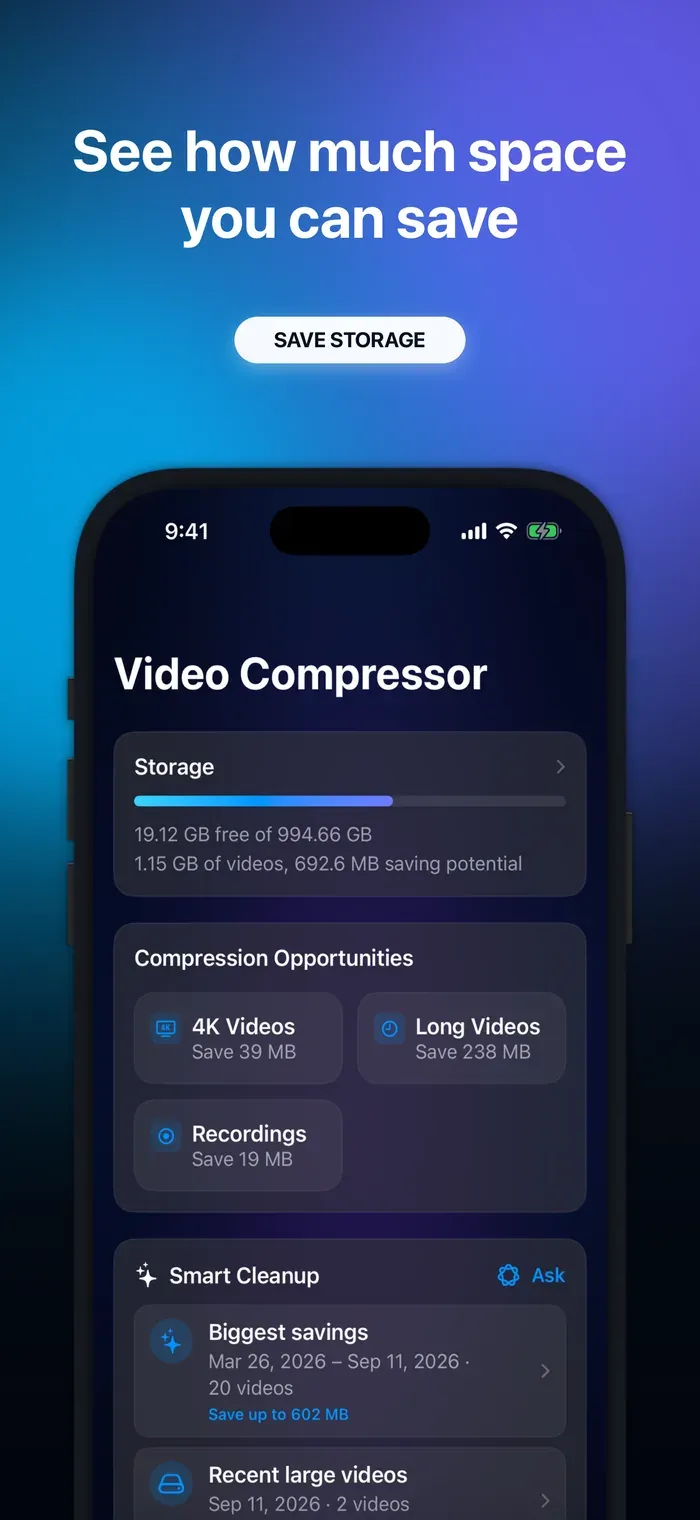
Video Compressor scans your library, shows videos worth shrinking, and lets you choose High Quality, Balanced, or Max Saving. Compression runs on your iPhone, and you can compare the original with the compressed result before deciding what happens to the original. If an original is stored only in iCloud, Apple PhotoKit may need to download it first.
The original is never removed as part of the compression itself. Deleting it is a separate action with the system Photos confirmation. Remember that if iCloud Photos is enabled, confirming that deletion removes the original across your synchronized library; the compressed copy remains as its own video. The guide on deleting the original after compressing a video covers that decision in more detail.
Conclusion
iPhone storage is fixed space on the device. iCloud storage is online capacity for synchronized data, backups, and files. Optimize iPhone Storage connects the two by keeping full-resolution originals in iCloud while allowing smaller versions on your device when space is needed.
The key safety rule is equally clear: deleting in iCloud Photos deletes across every device using that library. Check which storage is full, verify synchronization and backups, then choose optimization, cleanup, or compression based on the problem you actually have.
If you want to make large videos smaller while keeping control over the original, download Video Compressor from the App Store and review the estimated savings before you compress.
Thanks!