Compressing a video creates a smaller version, but it does not automatically make the original disposable. You can delete the original after compression, as long as you have verified the result, checked the details you care about, and accepted that the original quality cannot be recreated from the smaller file.
My practical advice is simple: treat compression and deletion as two separate decisions. First create and inspect the compressed copy. Only then decide whether the storage saving is worth giving up the original.
Can I delete the original video?
Yes, you can delete the original after compressing a video. The compressed copy is a separate video that can remain in your Photos library after the original is removed.
However, “the compressed video plays” is not enough verification for an important recording. Compression can change more than file size. Depending on the app and settings, the result can have a different resolution, codec, dynamic range, audio format, creation date, location, caption, or album membership.
Deleting the original also removes your best source for making a different version later. You can compress an original again with a higher-quality preset, a more compatible codec, or better software. You cannot restore information that was discarded by an earlier lossy encode.
I would delete an original only when at least one of these statements is true:
- The compressed copy looks and sounds good for its intended use.
- The original exists in a separate backup that you have checked.
- The video is replaceable and preserving its maximum quality does not matter.
For an irreplaceable family video, paid recording, or source clip you may edit later, keeping a separate original is usually the safer choice.
How do I verify the compressed copy?
Start by comparing the complete videos, not just their thumbnails. A thumbnail can look perfect while motion, sound, or the final seconds of a file reveal a problem.
Use this verification pass before deleting anything:
- Confirm that the compressed video opens and plays to the end.
- Compare the beginning, middle, and end with the original.
- Inspect movement, faces, text, shadows, gradients, and fine detail.
- Listen with sound enabled and check speech, music, and synchronization.
- Confirm that the orientation, crop, duration, and playback speed are correct.
- Open the Photos information panel and compare the date, time, location, caption, and album information you rely on.
- Test the copy on the device or app where you plan to watch or share it.
Fast movement is especially useful during comparison because compression errors often become easier to see there. Dark scenes, skies, walls, and other smooth gradients can also reveal blockiness or visible color bands.
Do not compare two videos at different zoom levels if you can avoid it. View the same moment at the same size and switch between the versions. A smaller preview can hide differences that become visible on a television or Mac.
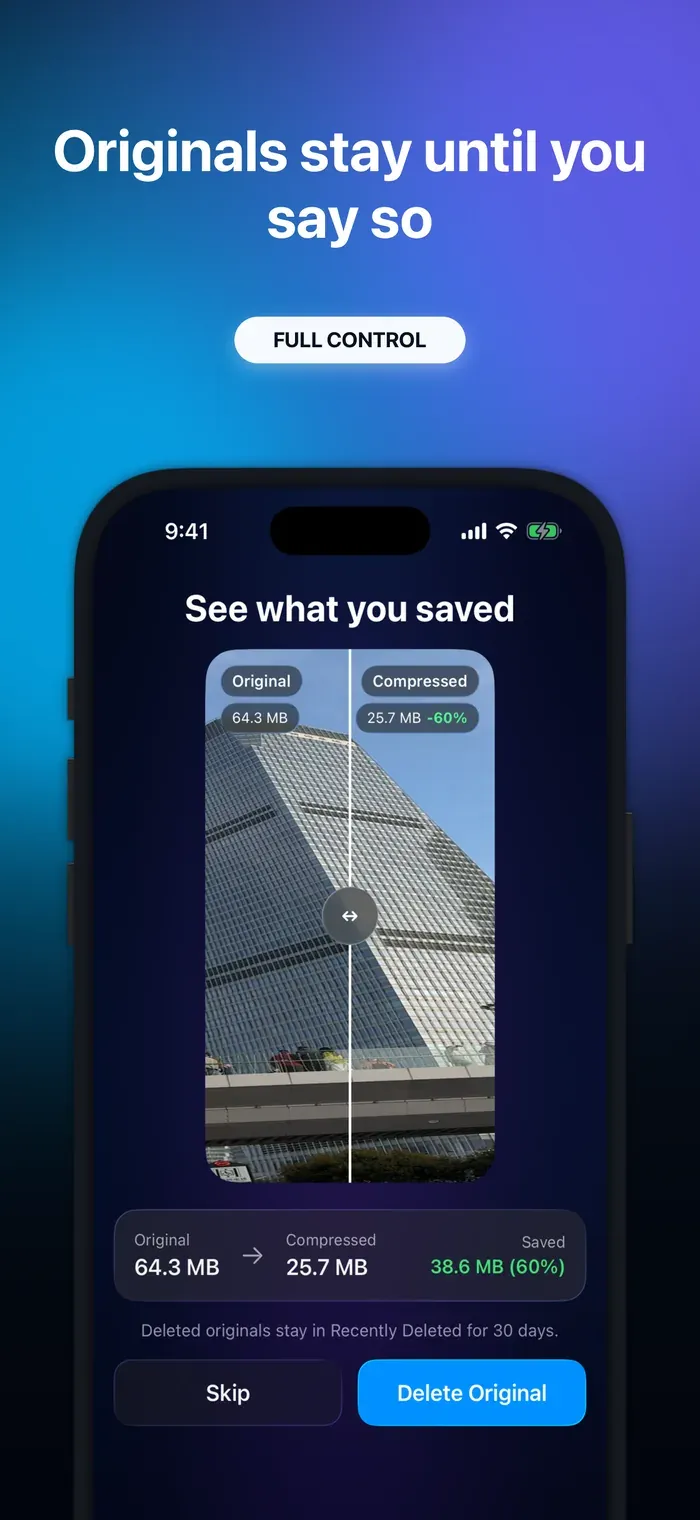
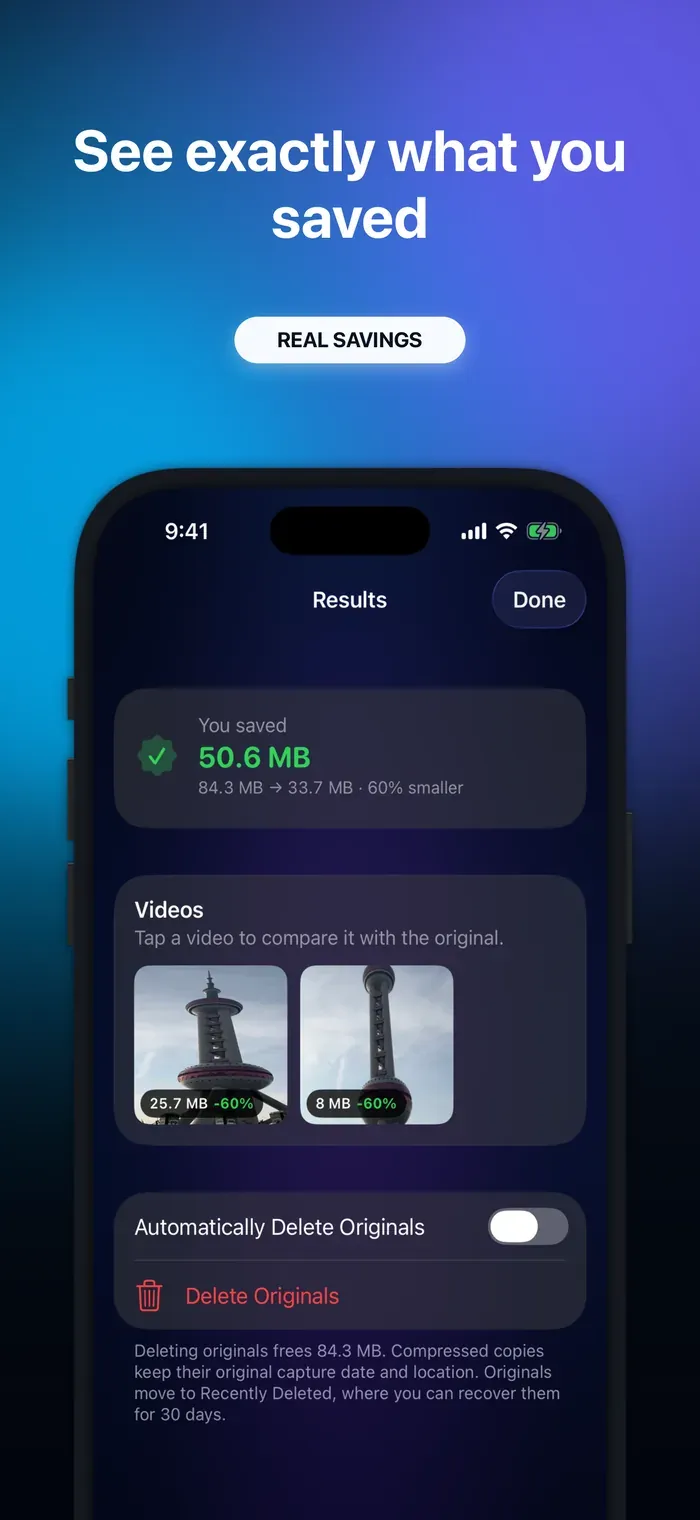
Video Compressor is designed around this decision: it saves the compressed copy first, shows the real original and compressed result side by side, and leaves deletion as a separate action with the system Photos confirmation. That gives you a chance to judge the actual output instead of deleting based on an estimate.
What happens when iCloud Photos syncs?
iCloud Photos is a synchronized library. It is not a second, independent copy that remains untouched when you delete something.
Apple explains that changes made on one device appear on your other devices. If you delete the original on an iPhone, it is also deleted from other devices using iCloud Photos with the same Apple Account. The compressed copy will sync as its own library item, but the deleted original will not stay safely stored on your Mac or iPad merely because you saw it there earlier.
Give the compressed copy time to upload before cleaning up an important original. Apple notes that sync time varies with the collection size and internet speed. You can check the Photos sync status rather than assuming an upload has completed.
There is another detail when Optimize Storage is enabled. Your iPhone may hold a smaller local representation while iCloud keeps the full-resolution original. A compression app may therefore need to download the source through Apple’s photo library services before processing can begin. Wait for that process and the subsequent upload of the result to complete.
If you use an iCloud Shared Photo Library, be even more deliberate. Deleting a shared item can affect other participants. Apple’s iCloud deletion guidance explains that a deletion from a shared library removes the item from members’ devices, while recovery and permanent-deletion permissions depend on who added it.
Is iCloud Photos a backup?
No. Syncing and backing up solve different problems.
Apple explicitly states that items in iCloud Photos aren’t duplicated in iCloud Backup. Its separate explanation of what iCloud backs up says that data already synced to iCloud is not included in the daily device backup.
This distinction matters because a synchronized deletion spreads across your library. A backup should be a copy outside that sync relationship.
For videos you cannot replace, export the original to a Mac, external drive, or another backup destination before deleting it. On iPhone, Apple documents an Export Unmodified Original option for connected storage. Apple also recommends making archive copies of information stored in iCloud.
Do not stop after copying the file. Open the backup and confirm that it plays. A backup you have never tested is only an assumption.
Will metadata and albums stay intact?
Not necessarily. There are two kinds of information to think about:
- File metadata stored in or alongside the video, such as capture information and location.
- Photos library data managed by Photos, such as captions, adjustments, favorites, and album membership.
Apple’s Photos information guide shows that a library item can have a capture device, date and time, file size, location, caption, and album list. A newly encoded file may not receive every value from the source. The outcome depends on how the compression app exports the result.
Album membership deserves a manual check because an album is an organization inside the Photos library, not simply a property you can expect every exported movie file to carry. If the compressed video is not in the same albums, add it before deleting the original. Otherwise, removing the original can make the video disappear from the album even though the compressed copy still exists elsewhere in your library.
Captions, adjusted dates, locations, favorites, and edit history should be checked for the same reason. If a detail matters, compare both items in Photos instead of assuming it transferred.
Sharing can change data too. Apple says ordinary sharing includes associated metadata, while the All Photos Data option available for AirDrop and iCloud links sends the original file with edit history and metadata. Apple’s sharing options guide also lets you remove location or choose a more compatible format. In other words, the path you use can affect what arrives.
Does compression preserve HDR and audio?
It can, but you should not assume it does.
HDR is not just a brighter-looking picture. The output needs a suitable codec, color depth, color space, and HDR metadata, followed by an HDR-capable playback path. A compressor can instead produce a standard dynamic range version, whether for compatibility or because of its export settings.
Apple’s guide to editing HDR video demonstrates this distinction clearly: iMovie can export an HDR movie with HDR enabled or make an SDR version with HDR disabled. Apple recommends an HLG master or HEVC 10-bit for its highest-quality HDR workflow in Final Cut Pro. Those details show why matching resolution alone does not prove that HDR survived.
Compare HDR on a display and in an app that supports it. Look for changed highlights, flat contrast, clipped bright areas, or unexpected colors. If keeping HDR matters, retain the original until you have confirmed the output in your real playback setup.
Audio needs its own check. Listen to every important channel and confirm that speech remains synchronized. Videos recorded with newer audio features can contain more than a basic stereo soundtrack. Apple documents Spatial Audio and Audio Mix for supported iPhone models, which is a good reminder that “the video has sound” does not prove every original audio characteristic remains available.
If you plan to edit the recording later, the original audio may be more valuable than the storage saving. Keep it or archive it separately.
What does Recently Deleted protect?
When you delete a video in Photos, Apple keeps it in Recently Deleted for 30 days. During that period, you can recover it or permanently delete it. With iCloud Photos enabled, the deletion and recovery state syncs across your devices.
This gives you a useful final safety window. After deleting an original, use the compressed copy normally for a few days. Share it, cast it, or edit it if those are your intended uses. If you find a problem, recover the original before the window ends.
Recently Deleted is not a backup. The item is scheduled for permanent removal, and you can also erase it manually before the 30 days are over. Apple’s iPhone deletion guide warns that permanently deleted items cannot be recovered.
I would not empty Recently Deleted immediately after a large compression session unless you have a verified backup and need the space right away. The recovery window is valuable precisely because some issues only appear after you use the result.
Conclusion
You can delete an original video after compression, but only the compressed copy, your verification, and your backup strategy can make that decision safe. Check the complete video, audio, HDR behavior, metadata, captions, dates, locations, and album membership. Remember that iCloud Photos syncs deletion rather than preserving an independent backup.
The best workflow is to compress first, compare the real result, wait for iCloud to sync, and delete only when you are satisfied. Keep Recently Deleted as a temporary recovery option, not as your archive.
If you want to recover space without making the deletion decision upfront, use Video Compressor to create and compare a smaller copy first. You remain in control of whether the original stays or goes.
Thanks!