HEVC and H.264 (often written as H264) are the two video codecs you are most likely to encounter on an iPhone. HEVC usually stores comparable visual quality with less data, while H.264 remains the safer choice when a video must work with older devices, software, or upload systems.
That summary is useful, but it can also be misleading. A codec alone does not determine quality or file size. Resolution, frame rate, HDR, encoder settings, and the content itself all matter. Here is how I decide between HEVC and H.264 without turning the choice into a specification exercise.
What are HEVC and H.264?
A codec encodes video into a smaller stream and decodes it for playback. Raw frames would take an impractical amount of storage, so the encoder looks for information it can represent more efficiently within a frame and across nearby frames.
H.264, also called AVC or Advanced Video Coding, is the older of the two. It has broad support across phones, computers, browsers, editing tools, messaging systems, and older hardware.
HEVC stands for High Efficiency Video Coding and is also called H.265. It is newer and can compress video more efficiently. Apple added HEVC capture and system support with iOS 11-era devices and software.
Do not confuse the codec with the file extension. A name ending in .mov or .mp4 describes the container. The video inside that container can use a codec such as H.264 or HEVC. If an upload form rejects a video, changing the filename extension does not convert the codec.
Is HEVC smaller than H.264?
HEVC is designed to deliver better compression than H.264. Apple says HEVC uses less device and iCloud storage while preserving the same visual quality. In a technical presentation, Apple described HEVC as roughly 40% more efficient than AVC, but also added an important qualification: the result depends on the content and the quality of the encoder.
Treat that 40% as a ballpark from Apple’s streaming guidance, not a promise for every iPhone clip. A quiet interview, a fast football match, a dark concert, and a detailed screen recording do not compress in the same way. Two apps can also produce different files from the same source because they use different quality and data-rate decisions.
The fair comparison is:
- the same source;
- the same resolution and frame rate;
- a similar visual-quality target;
- then compare the resulting size and appearance.
HEVC will generally have the advantage under those conditions. However, a high-data-rate HEVC export can still be larger than an aggressively compressed H.264 export. The codec label does not overrule the actual settings.
HEVC vs. H.264 quality
Neither codec has one fixed quality level. You can create excellent or poor output with either. Compression quality depends on how much information the encoder is allowed to keep and how hard the source is to represent.
HEVC’s benefit is that it can often reach a similar visual result at a lower data rate. This is especially useful for high-resolution video, where every minute can otherwise occupy significant storage. Apple also uses HEVC in modern HDR workflows; its developer guidance describes HEVC as a common HDR distribution format with manageable file sizes.
That does not mean converting every H.264 file to HEVC improves it. Re-encoding is generally lossy: the new encoder works from pixels that have already been compressed. It may make the file smaller, but it cannot restore detail discarded by the first encode. Keep the original when quality matters.
Look beyond overall sharpness when comparing results. Check moving hair or leaves, gradients in skies, fine text, low-light noise, and fast camera motion. Those areas tend to reveal compression artifacts sooner than a paused, well-lit frame.
Which codec does iPhone use?
On a compatible iPhone, go to Settings > Camera > Formats. You will see two relevant choices:
- High Efficiency: records video using HEVC.
- Most Compatible: records video using H.264.
Apple recommends High Efficiency for space-saving capture. Most Compatible uses the older formats that work more broadly with other devices and operating systems. The setting also affects photo format: High Efficiency uses HEIF for photos, while Most Compatible uses JPEG.
The change applies to recordings you make afterward. Existing videos are not converted. Some high-data-rate camera modes require HEVC, so the exact recording options available still depend on your iPhone model and selected mode.
You can see which format new recordings use in Settings > Camera > Formats. Photos does not show a clip’s codec: its information panel (swipe up or tap the information button) lists the file size and capture details such as the camera used. Apple’s photo and video information guide describes what is shown. Because the setting only applies to new recordings, older clips in your library may use either format.
When should you choose HEVC?
I would keep High Efficiency enabled when the videos mainly stay inside a modern Apple workflow. It is a practical default if you use current iPhones, iPads, and Macs and care about storage.
HEVC makes sense when:
- you want smaller camera files at comparable visual quality;
- videos stay in Photos or iCloud Photos;
- your editing and playback apps explicitly support HEVC;
- you record high-resolution or HDR footage;
- you control the devices that receive the file.
Apple says support is built into iOS 11 and later, iPadOS, visionOS, and macOS High Sierra 10.13 and later, although older hardware can have limitations. Modern Apple devices are therefore the easy case.
iCloud Photos preserves the original format, resolution, and frame rate. That is good for fidelity, but it means iCloud does not quietly turn an HEVC original into H.264 just because another device might prefer it. The receiving device and app still need suitable support.
When should you choose H.264?
Choose Most Compatible when successful playback matters more than storage efficiency and you do not control the destination. H.264 is the conservative choice for an older computer, legacy editing software, a presentation system, or an upload portal with unclear requirements.
H.264 makes sense when:
- a client or website specifically requests it;
- you regularly exchange files with older devices or software;
- the recipient cannot open an HEVC test file;
- you need an SDR export intended for broad compatibility;
- avoiding a conversion step is more valuable than saving space.
Apple notes that 1080p or lower at 60 fps or lower is more broadly compatible with older devices. Codec is only part of compatibility; resolution, frame rate, bit depth, and HDR can also cause trouble.
I would not switch the camera permanently based on one troublesome destination. You can keep capturing efficiently and create an H.264 copy when needed. On a Mac, Apple documents H.264 conversion through QuickTime Player by choosing Greater Compatibility, or through Finder’s Encode Selected Video Files service.
What happens when you share HEVC?
Apple may automatically share media in a more compatible format through methods such as AirDrop, Messages, or email when the receiving device does not support the newer format. The word “may” matters: do not assume every app, website, or transfer route performs the same conversion.
USB import can also convert media. Apple says an HEVC video imported from an attached iPhone or iPad into Photos, Image Capture, or a PC might become H.264. If you want to preserve the source, go to Settings > Apps > Photos and choose Keep Originals.
This automatic behavior explains why a file can appear different after transfer. It can also make troubleshooting confusing: the video in iCloud Photos may remain HEVC while a separately imported copy is H.264. Inspect the destination file instead of relying on the original’s metadata.
For an important delivery, test the exact workflow. Send a short sample, open it on the target system, and verify picture, audio, color, and orientation. Compatibility claims are less useful than a successful end-to-end test.
Compress existing iPhone videos
Changing Camera formats does not help with videos already recorded. You need to export or re-encode those files.
iMovie can reduce resolution during export, which is the simplest free option for one clip. A Shortcut using Encode Media can provide a reusable conversion workflow, although the available controls vary by OS version. If the final destination requires H.264, verify the codec after export rather than assuming that a smaller resolution also changed the codec.
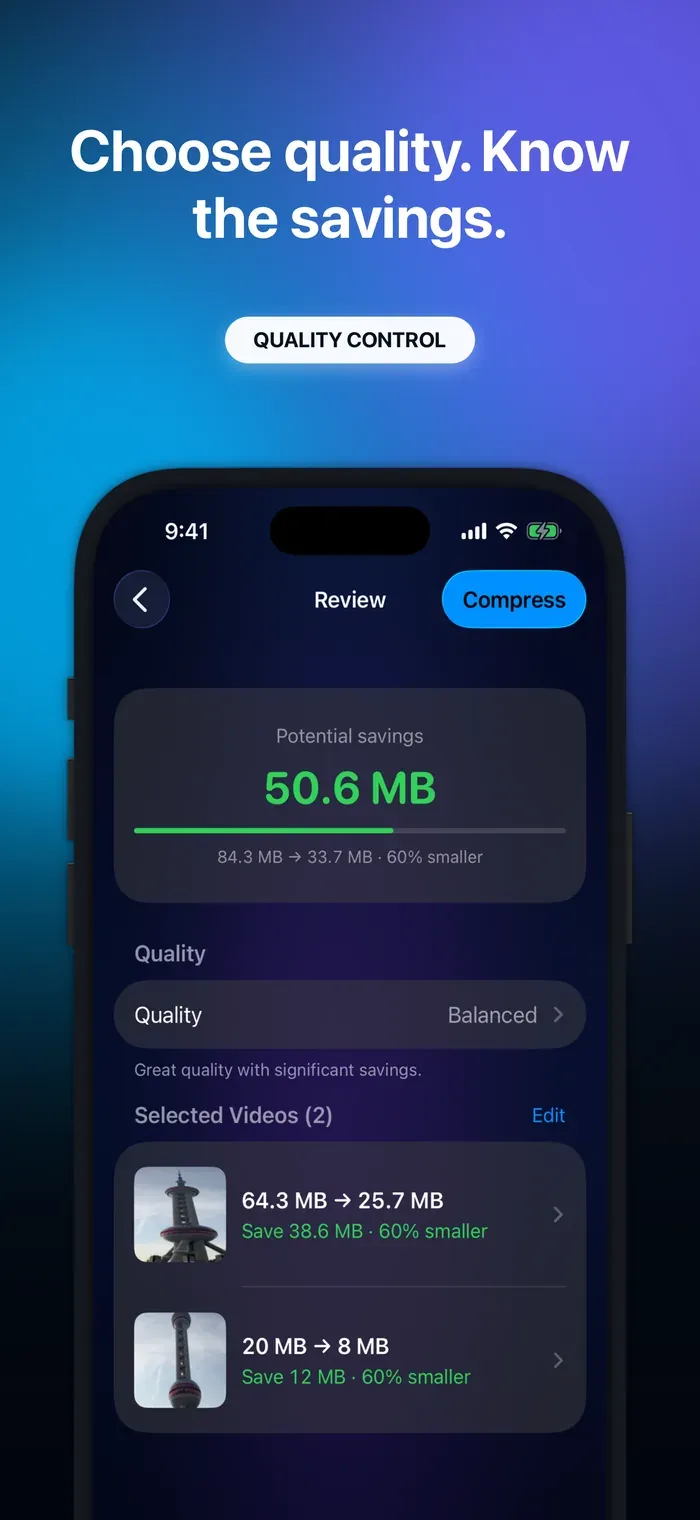
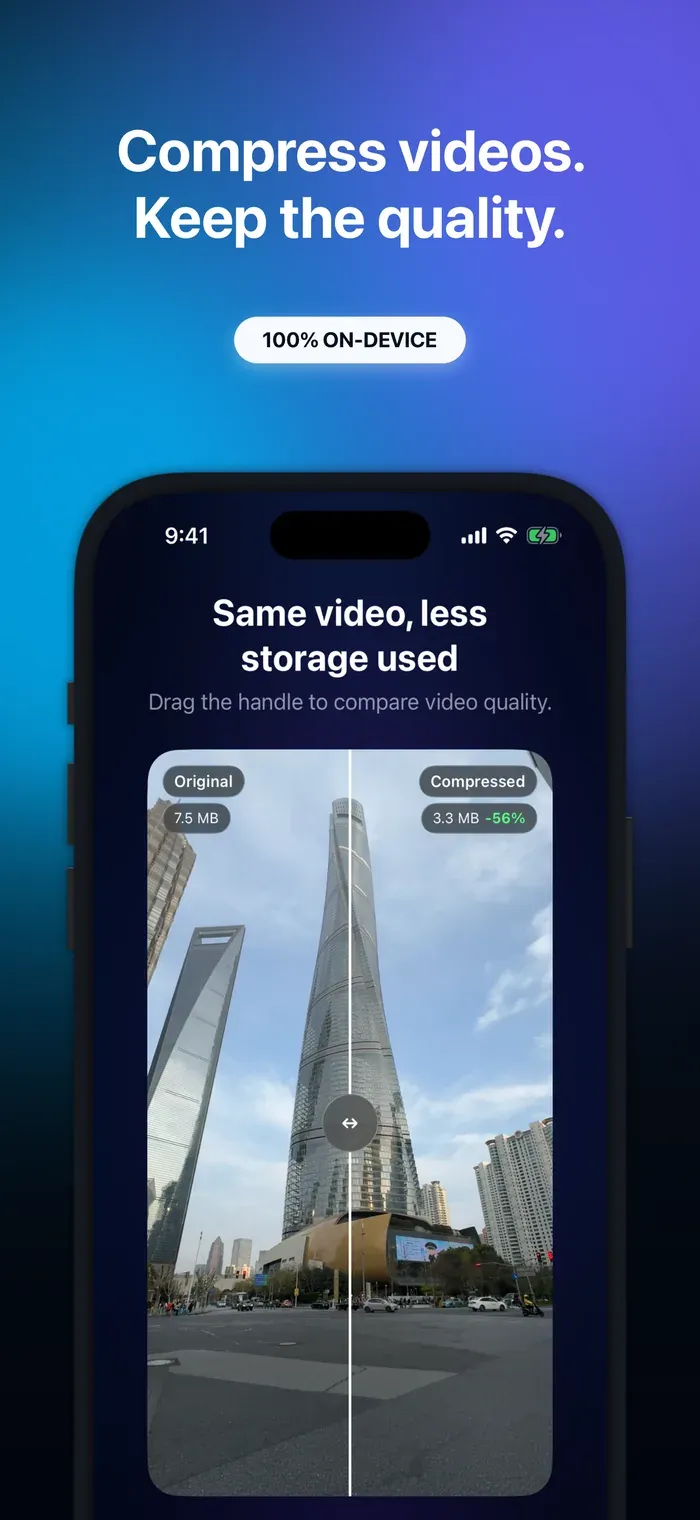
If your goal is to reclaim storage across many videos, Video Compressor uses on-device HEVC compression and lets you choose High Quality, Balanced, or Max Saving. It estimates potential savings, then lets you compare the actual original and compressed result before you decide what to do with the original. Video content is not uploaded to SwiftLee servers.
This is where HEVC is most useful as a practical tool rather than a settings label. You can keep the visual result you care about while trying to reduce the footprint. No preset can guarantee a specific saving for every clip, so checking the measured result remains essential.
HEVC or H.264: the answer
Use HEVC for efficient capture and storage when your devices and apps support it. Use H.264 when you need the broadest compatibility, especially for older or unknown destinations.
A practical default on a current iPhone is High Efficiency, followed by an H.264 conversion only when a destination requires it. That avoids paying the storage cost of H.264 for every recording while keeping compatibility as an export decision. If you want to shrink existing videos, compare the output instead of trusting a codec name or advertised percentage.
Conclusion
HEVC is generally more storage-efficient, while H.264 remains easier to share across a mixed collection of devices and software. Quality and size still depend on resolution, frame rate, HDR, source content, and encoder choices.
Start with High Efficiency if your workflow supports it. Switch to Most Compatible, or create an H.264 copy, when delivery requirements call for it. For a library that is already taking too much space, Video Compressor can help you evaluate on-device HEVC results before removing an original.
Thanks!