# Video Compressor vs Compresto vs HEVCut vs Shortcuts vs Photos

> Compare three on-device iPhone video compressor apps, then see what Apple Shortcuts, Photos, and iMovie can and cannot do, with App Store pricing checked on 2026-11-18.

- Author: Antoine van der Lee (https://videocompression.app/about/)
- Published: 2026-11-20
- Updated: 2026-11-20
- Canonical URL: https://videocompression.app/blog/video-compressor-vs-compresto-hevcut-shortcuts-photos/

## Key takeaways

- The three dedicated apps in the table below all compress video on-device; Photos only trims, and Shortcuts is a DIY re-encode you build yourself.
- Compresto lists the lowest yearly Pro price among the three apps on the US App Store page I checked on 2026-11-18.
- I build Video Compressor. It focuses on library-wide HEVC compression, side-by-side comparison, optional lifetime Pro, and Ask cleanup plans on supported iPhones (version 1.5.0).
- Every re-encode trades some quality for size. Watch the output before you delete anything.
- Built-in Shortcuts, Photos trimming, and iMovie export are free but do not replace a library-wide compressor workflow.

If you want a dedicated iPhone app to shrink videos on-device, the table below compares Video Compressor, Compresto, and HEVCut. For one clip, Apple’s built-in tools may be enough: Photos trims without re-encoding, iMovie exports a lower resolution, and Shortcuts can re-encode when you build the workflow yourself. Every re-encode can cost some quality, so check the output before you delete the source.

I build [Video Compressor](https://apps.apple.com/app/id6810118769?ct=compare-page), so treat my summary with that in mind. Prices and features below come from Apple’s documentation and the App Store listings linked in the sources. I checked those listings on **2026-11-18**. Video Compressor **1.5.0** was live on the App Store that day.

## Comparison at a glance (apps only)

| App | Best for | Subscription | On-device | Library-wide scan | Side-by-side compare | Ask: chat for AI cleanup plans |
| --- | --- | --- | --- | --- | --- | --- |
| [Video Compressor](https://apps.apple.com/app/id6810118769?ct=compare-page) | Reviewing and clearing a large library | Free; weekly, yearly, or lifetime Pro from $4.99/week | Yes | Yes | Yes | Yes |
| [Compresto](https://apps.apple.com/us/app/compress-photos-videos/id6499211745) | Lowest subscription price among these three | Free; weekly, monthly, or yearly Pro from $0.99/week | Yes | No | No | Not listed |
| [HEVCut](https://apps.apple.com/us/app/video-compressor-hevcut/id6737538832) | Photo and video cleanup on iOS 26 and later | Free; multiple Pro in-app purchases | Yes | Yes | Yes | Not listed |

Yes and No reflect what each US App Store listing states on 2026-11-18. “Not listed” means the listing does not mention the feature. Ask needs iOS 27 and an iPhone 15 Pro or newer, Compresto’s listing mentions a preview before saving but no side-by-side comparison, so I marked it No (details below).

**Lowest price:** On the US App Store page I checked on 2026-11-18, Compresto’s **CompressX Pro Yearly** is **$9.99**, while Video Compressor **Pro – Yearly** is **$29.99**. I am not claiming Video Compressor is cheaper. The higher yearly price on our listing buys, based on the same listing and the app itself: a **Pro – Lifetime $49.99** one-time option, a free **1 GB** cumulative savings allowance before Pro is required, library-wide scanning with collections such as large and 4K videos, side-by-side comparison before you delete an original, and **Ask** on supported iPhones (see below). Confirm prices in your locale before you buy.

## Video Compressor

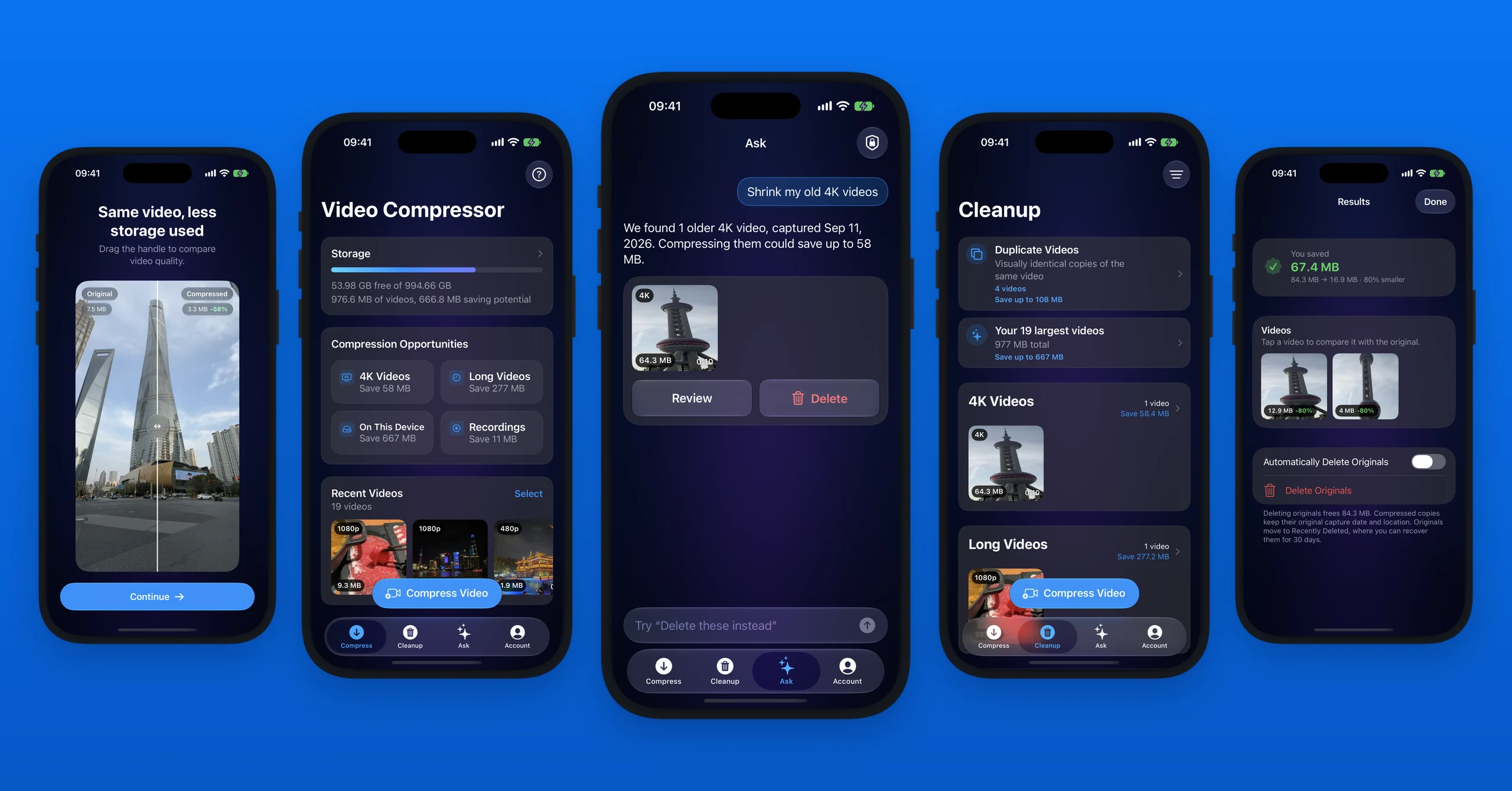
I designed Video Compressor for people whose storage problem is a library full of large videos, not a single clip to send. It scans your Photos library, surfaces collections such as large, long, and 4K videos, estimates savings before compression, and runs HEVC encoding on the device. Photo and video content is not uploaded to SwiftLee servers.
<img src="/media/compare-iphones-hero.webp" width="2560" height="1340" loading="lazy" decoding="async" alt="Five iPhone screens of Video Compressor: a before and after comparison slider, the home screen with compression opportunities, the Ask chat, the Cleanup tab and the results screen" />

The workflow I care about is review before commitment. The app saves the compressed copy first, shows the original next to the result, and only deletes an original after you confirm through the system Photos dialog. Read [can you delete the original after compressing a video](/blog/delete-original-after-compressing-video/) for that sequence.

<div class="fact-card"><p class="fact-card__title">Pricing<span>App Store, US, checked 2026-11-18</span></p><div class="price-grid"><div class="price"><span class="price__label">Weekly</span><span class="price__amount">$4.99</span><span class="price__note">Pro subscription</span></div><div class="price"><span class="price__label">Yearly</span><span class="price__amount">$29.99</span><span class="price__note">Pro subscription</span></div><div class="price price--accent"><span class="price__label">Lifetime</span><span class="price__amount">$49.99</span><span class="price__note">One-time purchase</span></div></div><p class="fact-card__note">Free download with in-app purchases. The first <strong>1 GB of storage saved</strong> is free (cumulative bytes saved on compression). After that, Pro unlocks unlimited compression while the subscription or lifetime purchase is active. Apple shows the exact price in your locale before you confirm.</p></div>

<div class="fact-card"><p class="fact-card__title">Platform<span>per the listing</span></p><ul class="chips"><li>iPhone</li><li>iPad</li><li>iPhone Duo</li><li class="chip--strong">iOS and iPadOS 17.0 or later</li></ul></div>

### Ask

Ask is a chat tab I added in version 1.5.0 for planning cleanup, not for running compression without your review. You type what you want to know or clear, and on a supported iPhone it can answer library questions, surface duplicate videos, and propose compress or delete sets. It uses Apple’s Private Cloud Compute: your typed request and a summary of your library are processed by Apple, and your videos stay on the iPhone. I still review every plan in the app and confirm before anything changes. Favorites and videos in your albums are excluded from delete plans.

Ask needs an **iPhone 15 Pro or newer** on **iOS 27** with an internet connection. The tab only appears on phones that meet those requirements, and a daily limit applies with a clear message when you reach it.

I would not pick Video Compressor for a one-off export when iMovie is enough. I would pick it when you want library context, presets (High Quality, Balanced, Max Saving), measured comparison, and optional Ask planning. See [how to compress a video on iPhone](/blog/how-to-compress-video-on-iphone/) for the full method list.

## Compresto (Compress Photos & Videos)

On iPhone, Compresto is published as **[Compress Photos & Videos](https://apps.apple.com/us/app/compress-photos-videos/id6499211745)** by Hieu Dinh. The App Store description brands it as Compresto and covers both photos and videos, with batch compression, previews, and on-device processing.

<div class="fact-card"><p class="fact-card__title">Pricing<span>App Store, US, checked 2026-11-18</span></p><div class="price-grid"><div class="price"><span class="price__label">Weekly</span><span class="price__amount">$0.99</span><span class="price__note">CompressX Pro</span></div><div class="price"><span class="price__label">Monthly</span><span class="price__amount">$2.99</span><span class="price__note">CompressX Pro</span></div><div class="price price--accent"><span class="price__label">Yearly</span><span class="price__amount">$9.99</span><span class="price__note">CompressX Pro</span></div></div><p class="fact-card__note">Free download with in-app purchases. The description notes that some features require in-app purchase and that the premium version has no ads.</p></div>

<div class="fact-card"><p class="fact-card__title">Platform<span>per the listing</span></p><ul class="chips"><li>iPhone</li><li class="chip--strong">iOS 15.0 or later</li></ul><p class="fact-card__note">The separate <a href="https://compresto.app/">Compresto macOS app</a> is a different product with one-time Mac pricing on the developer’s site, not covered by the iPhone listing.</p></div>

Compresto is a practical choice when you want one app for stills and clips at the lowest subscription price in this comparison. I did not verify watermark behavior on the listing, so I am not claiming one either way.

## HEVCut (Video Compressor - HEVCut)

**[Video Compressor - HEVCut](https://apps.apple.com/us/app/video-compressor-hevcut/id6737538832)** by Alejandro Pacheco targets storage cleanup across photos and videos. The listing highlights HEVC video compression, duplicate finders, burst and Live Photo cleanup, batch processing, and on-device processing with no uploads.

<div class="fact-card"><p class="fact-card__title">Pricing<span>App Store, US, checked 2026-11-18</span></p><div class="price-grid"><div class="price"><span class="price__label">Pro</span><span class="price__amount">$5.99 to $39.99</span><span class="price__note">Several in-app purchases</span></div><div class="price"><span class="price__label">Unlimited</span><span class="price__amount">$19.99</span><span class="price__note">No period label listed</span></div></div><p class="fact-card__note">Free download with in-app purchases. The web listing shows these prices without subscription period labels. App Store reviews mention weekly, monthly, annual, and lifetime plans, but I am not treating review text as price facts. Confirm the billing period in the App Store before you buy.</p></div>

<div class="fact-card"><p class="fact-card__title">Platform<span>per the listing</span></p><ul class="chips"><li>iPhone</li><li>iPad</li><li>Mac</li><li class="chip--strong">iOS 26.0 / iPadOS 26.0 / macOS 26.0 or later</li></ul></div>

HEVCut overlaps with Video Compressor on library sorting and compression. I would compare them on whether you need photo cleanup tools, which OS versions you run, and how each app presents before-and-after results. I did not verify ads or watermarks from the listing.

## Free built-in options

These are not full library compressors in the same sense as the apps above. They ship with iOS and cost nothing extra.

### Apple Photos (trimming)

Photos is the fastest option when you do not need a new encoded file. Apple’s guide explains how to **trim** a video by dragging the ends of the timeline, then save the shortened clip or save it as a new clip. Trimming removes duration; it does not apply a new codec or bitrate. Photos does not batch-compress a library or target a file size for WhatsApp or email.

### Apple Shortcuts

Shortcuts is built into iOS and is free. Apple documents transform actions that can convert media, including video, when you pass files through **Encode Media** in a custom shortcut. You can show the shortcut in the share sheet, pick a smaller output size, and save back to Photos or Files. Shortcuts does not scan your library for large videos or show a side-by-side quality comparison. Maintenance is on you: OS updates can change action labels and options, so confirm the Encode Media settings on your own iPhone. For a starter recipe, see the Shortcuts section in [how to compress a video on iPhone](/blog/how-to-compress-video-on-iphone/).

### iMovie

Apple recommends [iMovie](https://support.apple.com/en-us/127765) when you want to export one video at a lower resolution after recording it. That workflow is free, stays on the device, and works for a single clip you are willing to run through a project. It does not scan your whole library or estimate savings across many videos.

## How I would choose

- **One clip, no new app:** trim in Photos or export lower resolution with iMovie per [Apple’s compression guide](https://support.apple.com/en-us/127765).
- **The same steps every time:** build a Shortcuts action and accept limited feedback on quality.
- **Photos and videos together at the lowest subscription:** try Compresto’s Compress Photos & Videos app.
- **Library cleanup with compression plus photo tools on iOS 26:** evaluate HEVCut.
- **Library-wide video compression with comparison, lifetime Pro, and Ask planning on a supported iPhone:** try [Video Compressor](https://apps.apple.com/app/id6810118769?ct=compare-page).

Whatever you pick, watch the compressed copy before you delete the original. Quality trade-offs are easy to miss on a small screen; I walk through what to check in [does video compression reduce quality](/blog/does-video-compression-reduce-quality/).

## Frequently asked questions

### What is the best free way to compress a video on iPhone?

Trimming in Photos is free and removes footage you do not need without re-encoding. For a smaller file from the same clip, iMovie and Shortcuts can export or encode a new copy at a lower size. Dedicated apps add library scanning but usually limit free use or sell Pro subscriptions.

### Which iPhone video compressor has no subscription?

Photos, Shortcuts, and iMovie are built in and free. Compresto and HEVCut are free to download with optional Pro purchases. Video Compressor includes a free savings allowance, then Pro is weekly or yearly, or a one-time lifetime purchase listed on the App Store, until cancelled.

### How do I compress a video for WhatsApp or email on iPhone?

Apple suggests lower export resolutions for sharing, such as 540p for social media and 360p for text messages in its iMovie compression guide. You can also export through a shortcut or use an on-device compressor, then attach the smaller file from Photos or Files.

### Will compressing an iPhone video reduce quality?

Usually yes, because encoding trades detail for size. Trim-only edits in Photos avoid re-encoding, but Shortcuts and compressor apps create a new file. Compare the copy with the original on motion, faces, and audio before you delete the source.

### Which option lets me compare before deleting the original?

Video Compressor saves a compressed copy first and shows the original next to the result. HEVCut’s App Store description mentions before-and-after control, and Compresto mentions preview before saving. Shortcuts and Photos do not provide a built-in quality comparison workflow.

## Sources

- [Trim video length and adjust speed on iPhone](https://support.apple.com/guide/iphone/trim-video-length-adjust-speed-and-edit-audio-iph1d1344a2d/ios)
- [Use Transform actions in Shortcuts on iPhone](https://support.apple.com/guide/shortcuts/transform-actions-apd1d9413cfb/ios)
- [How to compress a video on iPhone or iPad](https://support.apple.com/en-us/127765)
- [Compress Photos & Videos on the App Store](https://apps.apple.com/us/app/compress-photos-videos/id6499211745)
- [Video Compressor - HEVCut on the App Store](https://apps.apple.com/us/app/video-compressor-hevcut/id6737538832)
- [Video Compressor on the App Store](https://apps.apple.com/app/id6810118769)
